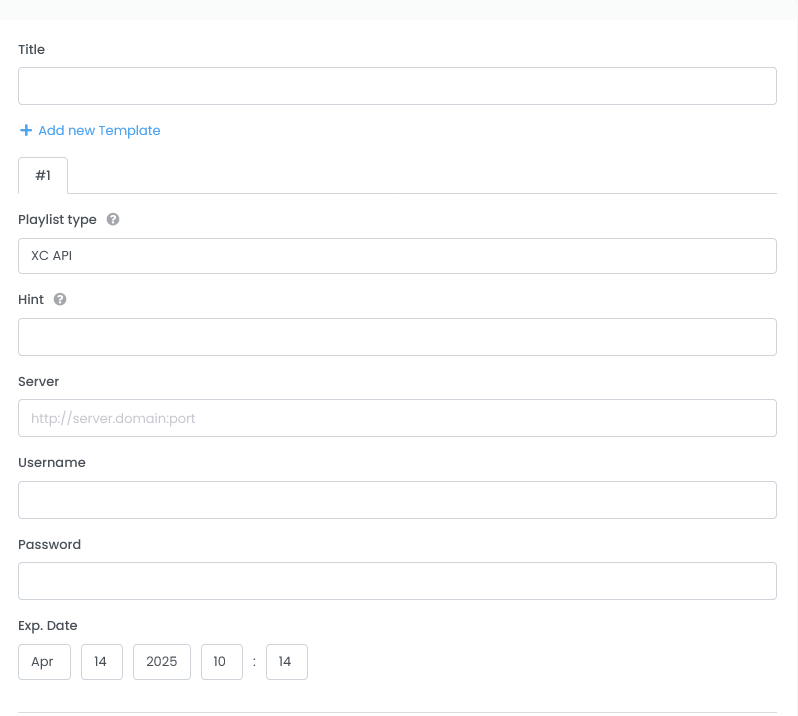
+ Add new template Your template can have multiple providers. If you want to manage multiple providers in one template, you can add additional ones here.
Playlist type Here you choose the way your template is synchronized with the IPTV provider or the content is loaded. You can choose between “XC API” and “M3U”. XC API means the Xtream Codes protocol, which many IPTV providers offer. More information here
Hint Is optional and defines the reference to the template. You will find this hint later in the stream overview and is intended to provide a better overview for templates with several providers
Server (XC API Playlist type) If you have received a link from the provider that looks something like this http://server.extension:8080/get.php?username=123USER123&password=123PASS123&type=m3u_plus&output=ts then you can create an template. In this link you have all the information to create a line. I take this link as an example. Server = http://server.extension:8080 Username = 123USER123 Password = 123PASS123
Username (XC API Playlist type) Username you got from your provider
Password (XC API Playlist type) Password you got from your provider
Server (M3U Playlist type) (recommended) Paste your M3U Url here. Only M3U lists from a URL can be automatically synced later.
Upload M3U-File (M3U Playlist type) If you don’t have an M3U Url you can upload your M3U file here. Keep in mind that this cannot be automatically synced later.
Remove this Template If you have multiple templates, you can remove one here. Only displayed if you have multiple templates
Exp. Date Here you can manually enter the provider expiry date of your playlist
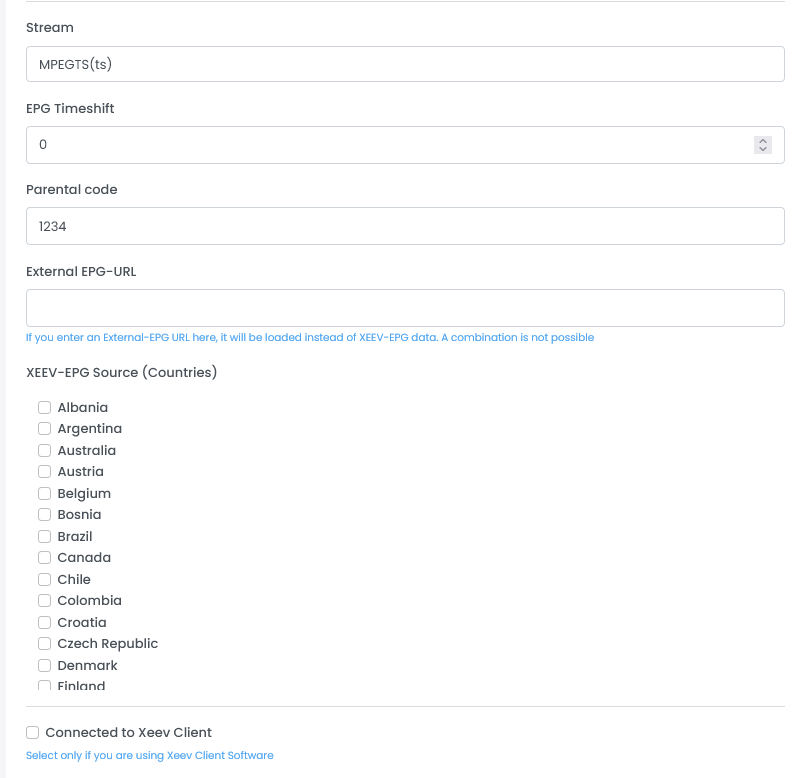
Stream Choose whether you want to have MPEGTS (.ts) or HLS (.m3u8) stream. You can still change that later
EPG Timeshift Here you can set Timeshift of the EPG data. This setting is valid for the whole list. You can set the timeshift individually in the category and channel
Parental code Here you can set the parental code for censored categories. Our apps and plugins can use this setting. It is not guaranteed that third party apps can do that.
External-EPG URL Here you can enter your own EPG source. You will get a dynamic URL such as “https://xeev.app/en/get/epg/XXXXX”, this URL will be redirected to your source. If you enter a URL here, you will not receive any EPG data from us. You should adapt the EPG-ID assignment to your EPG source
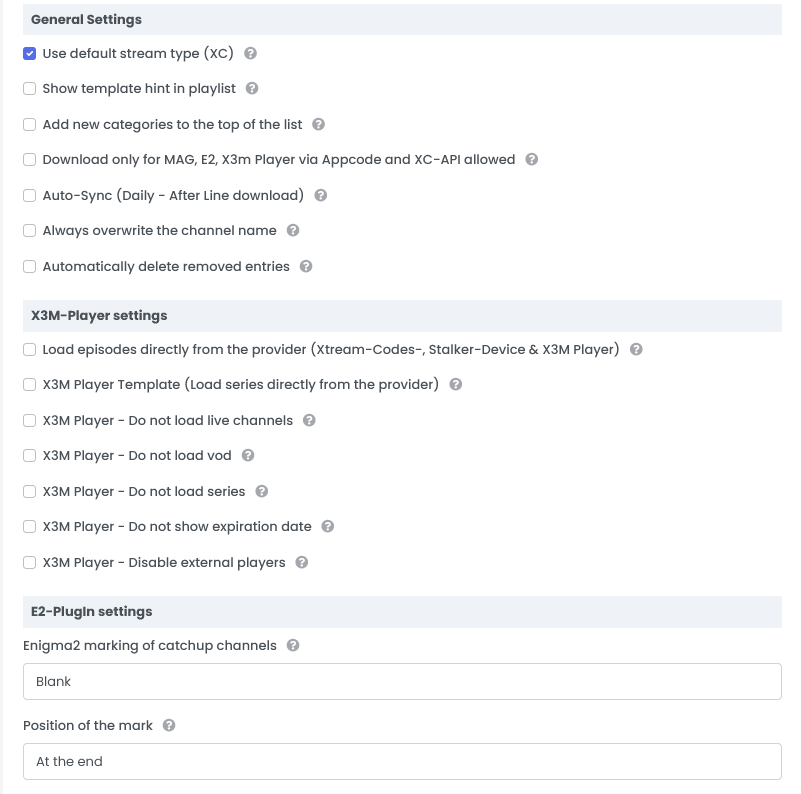
General Settings
Use default stream type (XC) (recommended) This setting is only relevant for XC API templates. This generates the stream link for modern IPTV servers.
Show template hint in playlist Hint from the template settings are also displayed in the playlist
Add new categories to the top of the list With this setting, new categories are added by the provider at the beginning of the list instead of at the end. This setting is not useful for the initial synchronization.
Download only for MAG, E2, X3m Player via Appcode and XC Api allowed This setting prevents loading a pure M3U file. Only apps and plugins that we provide can download the content of your playlist. It’s a security setting.
Auto-Sync (Daily – After download) With this setting, your template/playlist will be synchronized with the provider’s server after downloading. It will be queued after 24 hours since the last download.
Always overwrite the channel name With this setting, the channel names are always overwritten by the data from the provider. Be careful with this option (Usually not necessary)
Automatically delete removed entries With this setting, the entries are deleted after synchronization if the provider no longer offers them. A safety buffer of 36 hours is built in.
X3M-Player Settings
Load episodes directly from the provider (Xtream-Codes-, Stalker-Device & X3M Player) If you enable this option, the episodes for the series will not be synced here in the editor. These are loaded directly from the provider by the Xtream-Codes-, Stalker-Device & X3M Player if necessary. This setting is recommended if you only use Xtream codes devices or X3M players with this template. IMPORTANT! With these settings the series in the M3U file and Enigma2 plugin will not be available
X3M Player Template (Load series directly from the provider) With this setting, the series are loaded directly from the provider in our X3M Player app. The content from the Xeev Playlist Editor is ignored. Useful if your IPTV provider blocks the loading of the M3U file.
X3M Player (only) – Do not load live channels With this setting, the LIVE content in our app X3M Player will not be loaded.
X3M Player (only) – Do not load vod With this setting, VOD content will not load in our app X3M Player.
X3M Player (only) – Do not load series With this setting, the SERIES will not load in our app X3M Player.
X3M Player (only) – Do not show expiration date With this setting, the playlist expiry date will not be displayedin our app X3M Player.
E2-Plugin Settings
Enigma2 marking of catchup channels This setting is only relevant for our Enigma2 plugin. This determines how the TV-Archive (catch-up) channels are marked in the list
Position of the mark This setting is also only relevant for our Enigma2 plugin. This determines the position of the marker
XEEV-EPG Source (Countries) If you want to use our EPG data, you can select the desired EPG countries here. It is recommended to select up to 8 individual EPG countries. If more than 8, the entire EPG data source will be delivered. The entire EPG source is 300 MB in size when unpacked. For performance reasons, it is strongly recommended to choose a smaller EPG source