
Guide for Template Owners
Guide for Template Recipients
Guide for Template Owners
This feature allows you to share your template with other users. If permitted, the recipients can edit the template independently.
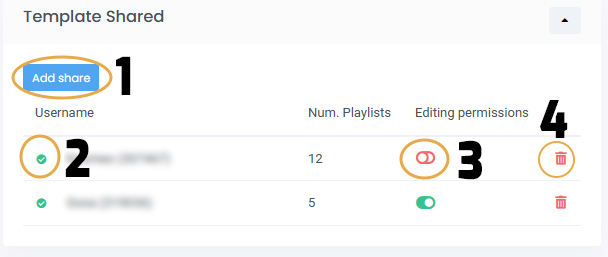
- “Add Share” button – to share the template with a user
- Status symbol:
- Orange means the recipient has not yet accepted the share
- Green means the recipient has accepted the share
- Switch for editing rights
- Option to delete the share
Creating a New Share
- Go to the overview of your templates
- Click on the gear icon next to the desired template
Or: Select the template and click “Settings” in the action bar - On the right side, in the “Template Shared” section, click “Add Share”
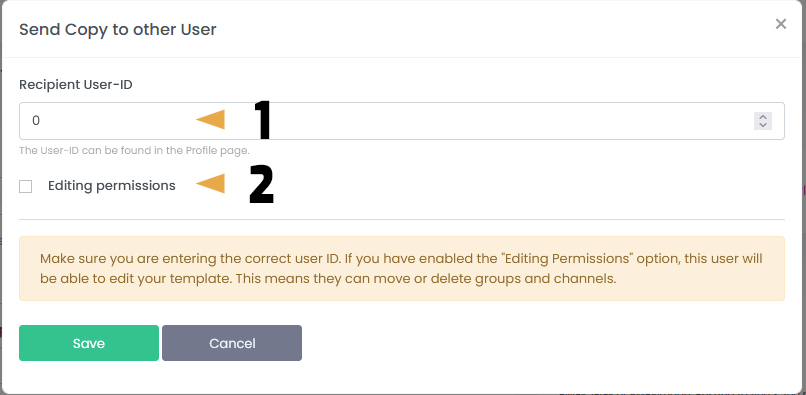
- In the “Recipient’s User ID” field, enter the user ID provided by the recipient
- The recipient can find their User ID on their profile page or by clicking on the user icon with their username in the top right corner
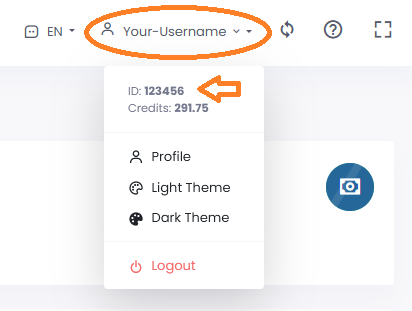
- Make sure the User ID is entered correctly
- Use the “Editing rights” checkbox to allow the recipient to edit the template
- Click “Save” to apply the share
Editing or Deleting a Share
- You can remove a share at any time from the Edit Panel of the template (the same place where the share was created. See Image 1.)
What happens when a share is deleted:
- If the recipient has already linked playlists to your template:
A copy of the template is created for the recipient, and the playlists are moved to this new version. The original share is then deleted. - If no playlists are linked to the template:
The share is simply deleted without creating a copy.
Template Overview
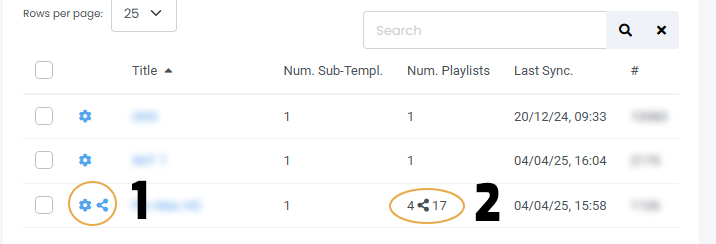
- The “Share” symbol indicates that the template has been shared with other users
- The number of playlists is shown in two parts:
- The first number: playlists on your own account
- The second number: playlists from other users linked to the shared template
Backup and Restore
- When backing up your template, all linked playlists are also included in the backup – including those from other users
- As the owner of the template, you are responsible for backing up all associated playlists
Important note when restoring:
- A full restore replaces the template and all linked playlists (including those from other users) with the content from the backup file
- This action should only be performed in emergencies and with careful planning
Guide for Template Recipients
You can find shared templates in the main menu under “Shared Templates”.
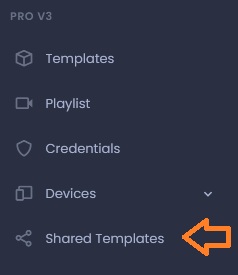
Click on “Shared Templates” in the menu.
A list will appear, similar in structure to your own templates. A detailed guide on how to edit templates can be found here: Template management

Unlike your own templates, you cannot change the settings of shared templates – only the template owner can do that. If the owner has granted you editing rights, you can edit groups and channels just like in your own templates.
Please note:
This is not a copy of the template – any changes you make are applied directly to the owner’s original template.
Before you can use a newly shared template, you must first accept it.
This step ensures that every user is aware of how shared templates behave when creating playlists.
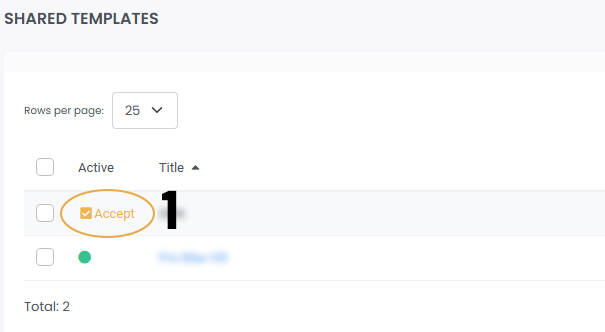
To accept a template:
- Click the “Accept” button
- You can then immediately begin creating playlists
New playlists can be created as usual from the “Add/Edit Playlist” menu. The shared template will now be available in your template selection.
Creating a Copy or Moving Playlists
If you later decide to move your playlists from the shared template to one of your own, you have two options:
If you later decide to move your playlists from the shared template to one of your own, you have two options:
- Move the playlists directly in the playlist overview
- Or: Create a copy of the shared template – this will automatically move all your playlists to the new copy
Logo for X3M Player and customer interface
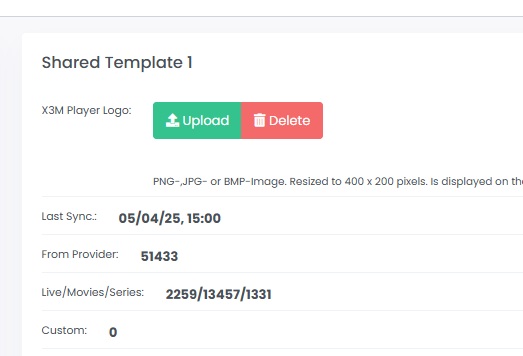
With a shared template, the logo for the X3M Player and customer interface is set in the management panel.