
Important
This step is necessary to link the streams with the correct EPG data. If you use external EPG data or those from your provider, then you can ignore the validation.
In the main menu (on the left) click on “Templates” in the PRO section. In the templates overview, select a template and click on “Edit” in the Actionbar
You are now in the categories and streams overview. Click on a category and then on EPG-ID in the Actionbar. A dropdown menu becomes visible. In this drop down menu click on EPG-ID Assignment
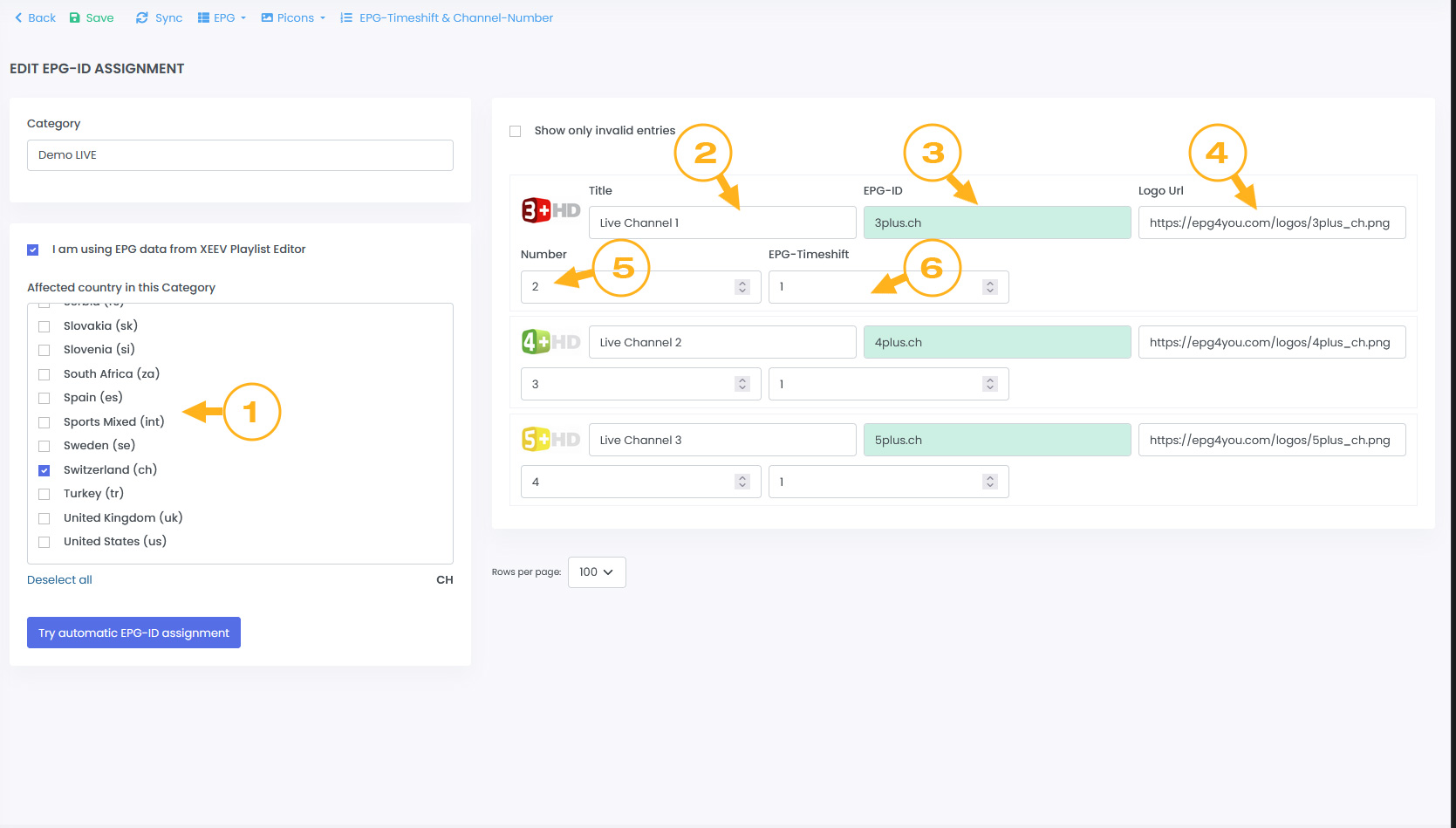
- In order for the automatic assignment to work, you must first select the EPG countries in the “Affected country in this category” area (1).
- Now click on the “Try automatic EPG-ID assignment” button
Our system is now trying to find a suitable EPG-ID with the stream titles (2).
The titles should be clear. Prefixes like [DE] etc. will prevent automatic assignment. We recommend cleaning up all titles before running Auto Assignment. We have tools for that. See Template/Playlist management
Important!
There is no guarantee that the automatic assignment will work. The stream names are decisive for success. If these are clear, our system will also find the appropriate EPG ID.
The automatic assignment only works on the current page. If your list has many entries, you should repeat the process for each page. In the dropdown “Rows per page” you can define how many entries are displayed on one page
On the right you will see a list of streams. The GREEN marked EPG-ID fields (3) are assigned correctly. Those marked RED could not find an assignment.
Now you should make the fine adjustments. Be sure to also check the fields marked in green. The EPG-ID should match the stream. The fields marked RED must be assigned manually. To do this, here is a list of the available EPG IDs that we offer. In the RED field next to the stream (3), type the first 3 letters of the EPG ID. You will get an automatic selection. In the selection, click on the desired EPG-ID. This field should now also be marked in green. Repeat this step for all fields marked RED
Other functions in this page
In this stream list you can also change the stream names, Logo-Url (4), Number (5) and EPG-Timeshift (6).
The stream or channel numbers are intended for end devices that require the M3U attribute “tvg-chno“.
Bulk editing of EPG timeshift and channel numbers
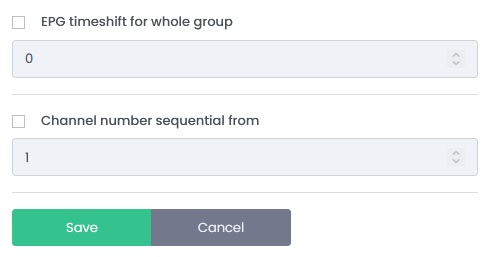
Click on “EPG-Timeshift & Channel-Number” in the Actionbar. A Pop-Up window will appear. Here you can:
- Change the EPG timeshift for the whole category
- Adjust the channel numbers of the whole category by defining the start number. The numbers are continuously adjusted for each stream in this category
In order for the respective function to be executed after saving, you must still activate the check box.
Instructions for further functions (Picons, EPG-ID) from the Actionbar are described in the “Template/Playlist management” (STANDARD, PRO) section.