
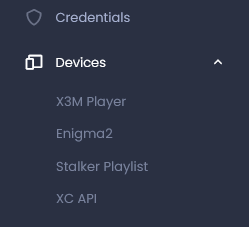
In the PRO version you can display and edit the devices separately. Select the device type in the main menu. In this overview, you can search for playlists using an App-Code or a MAC address..
X3M Player
Installation instructions and a description of the functions in the app can be found here
You can enable/disable X3M Player devices here (disabled devices will not receive a playlist or EPG data). Select one or more devices in the overview and click on “Enable/Disable” in the “Action” dropdown
Special actions for X3M Player are shown to you in the “Action” dropdown. In the dropdown you can choose between App Settings, App Settings to all devices and Send command – Reload Playlist. The App Settings to all devices action sends the settings to all devices regardless of which one you have selected. Click on one of these options. You are now in the App Settings window.
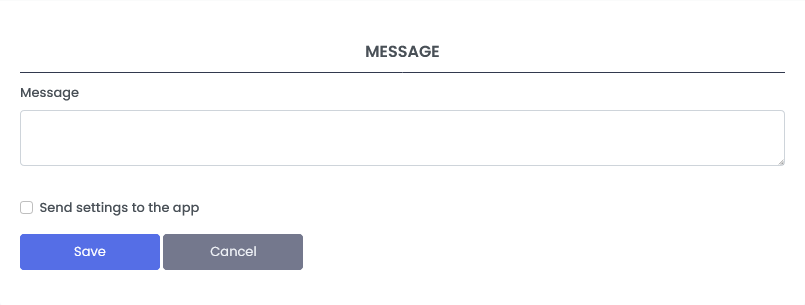
By default, you can send a message to the selected devices here. If you select the “Send settings to the app” option, you can send further settings to the app. Click on Save after editing. After a few minutes, the settings will be sent to the device. The user must accept the changes by confirming them
All these settings can also be changed directly in the app
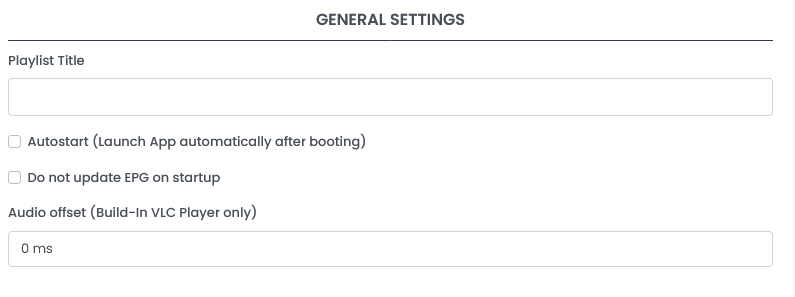
In the GENERAL SETTINGS area you can change the following:
- Playlist Title
- Autostart
Launch App automatically after booting - Do not update EPG on startup
By default, the EPG data is loaded when the app is started. Because that can lead to problems with low-performance devices you can disable it here? - Audio offset (Build-In VLC Player only)
This setting only affects the Build-In VLC player. This setting can help if the video and sound are not in sync
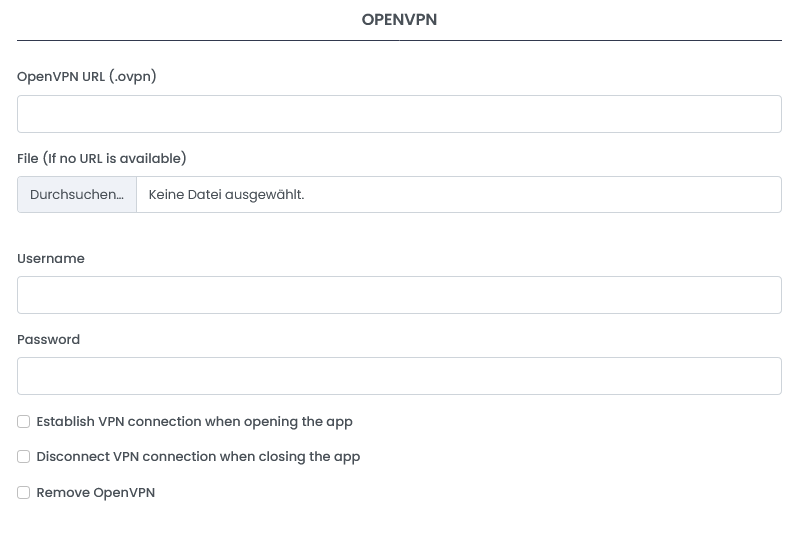
In the OPENVPN area you can change the following:
- OpenVPN URL (.ovpn)
Enter an OVPN Url here. The app loads them directly. Example of a supposed url is from NordVPN (https://downloads.nordcdn.com/configs/files/ovpn_udp/servers/ch373.nordvpn.com.udp.ovpn)
The server certificate must be included in the file - File (If no URL is available)
If you don’t have a URL for this file you can also upload it to us. The app loads the OVPN file from our server. - Username
Username for this OVPN connection - Password
Password for this OVPN connection - Establish VPN connection when opening the app
If you activate this option, the VPN connection will be established automatically after the start. - Disconnect VPN connection when closing the app
If you activate this option, the VPN connection will be automatically terminated after exiting the app - Remove OpenVPN
If you activate this option, the VPN profile will be deleted from this playlist
It should be noted here that these settings only have an effect on apps installed directly from our APK. Apps loaded from the Google Playstore do not have a VPN function. We had to remove this in December 2022 on the orders of Google.
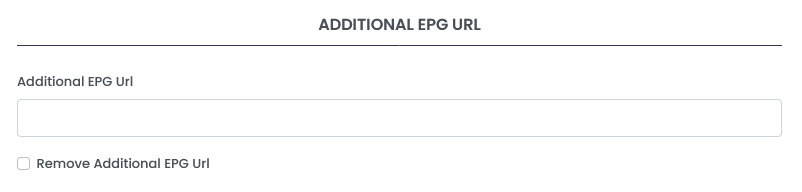
In the ADDITIONAL EPG URL area you can change the following:
- Additional EPG Url
The X3M Player app can have multiple EPG sources per playlist. In addition to this from the playlist, you can also enter an additional URL here. You have to know that you have to manually adjust the EPG ID for these streams. - Remove Additional EPG Url
If you activate this option, the Additional EPG URL (already saved on the device) will be deleted
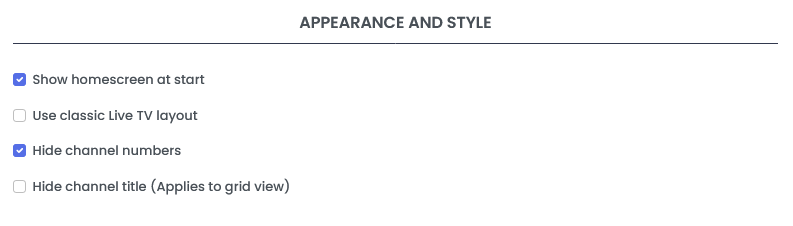
In the APPEARANCE AND STYLE area you can change the following:
- Show homescreen at start
By default, the app starts in the so-called homescreen. This is the view where you see the tiles for LIVE, MOVIE and SERIES. You can deactivate this here and the app will start automatically in Live TV View - Use classic Live TV layout
By default, Live TV starts in the EPG Grid view. If you activate this option, Live TV starts in Classic View - Hide channel numbers
This option disables the channel numbers in the Live-TV view. - Hide channel title (Applies to grid view)
With this setting you can disable the channel titles in the EPG-Grid view. You should have the picons (logos) on each channel in this case. Otherwise, the channels cannot be distinguished from one another
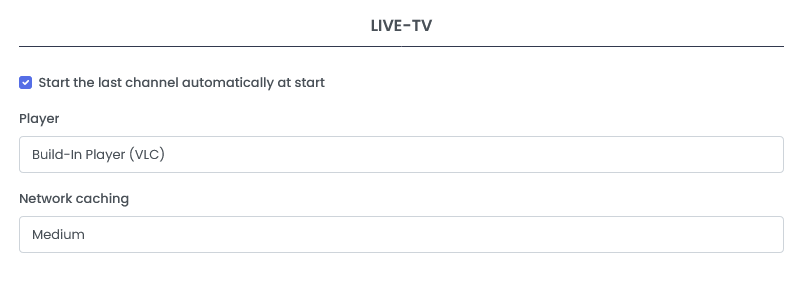
In the LIVE-TV area you can change the following:
- Start the last channel automatically at start
If you activate this option, the last opened stream will automatically be opened again when the app is started. - Player
The app has 2 Built-In stream players. ExoPlayer by Google and VLC Player. Both have specific characteristics and depending on the stream, one or the other may be better. You have to find that out for yourself. You can also define external players. However, we advise against it. - Network caching
With this setting you determine the network caching. A small cache with a very good Internet connection leads to very fast switching times. However, this can lead to interruptions if the Internet connection is poor
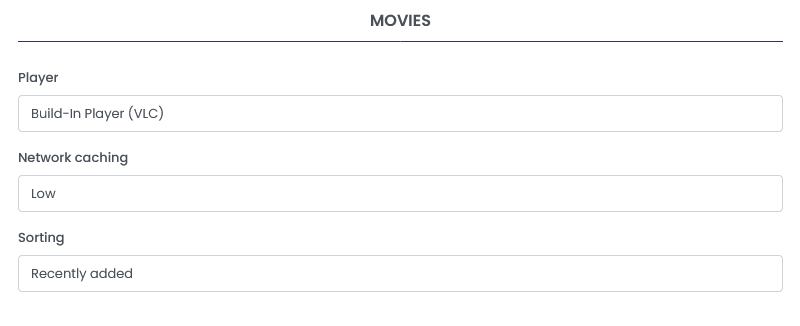
In the MOVIES area you can change the following:
- Player
The app has 2 Built-In stream players. ExoPlayer by Google and VLC Player. Both have specific characteristics and depending on the stream, one or the other may be better. You have to find that out for yourself. You can also define external players. However, we advise against it. - Network caching
With this setting you determine the network caching. A small cache with a very good Internet connection leads to very fast switching times. However, this can lead to interruptions if the Internet connection is poor - Sorting
With this setting you determine the sorting in the view. You can sort by
– Recently added
– Alphabetical sorting
– Original sorting (from Editor)
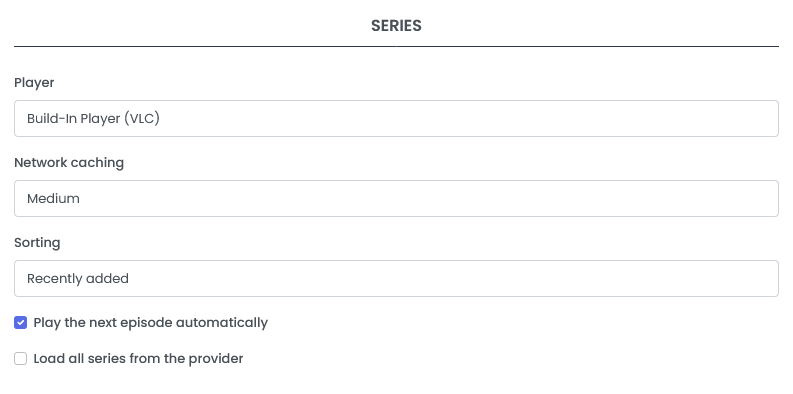
In the SERIES area you can change the following:
- Player
The app has 2 Built-In stream players. ExoPlayer by Google and VLC Player. Both have specific characteristics and depending on the stream, one or the other may be better. You have to find that out for yourself. You can also define external players. However, we advise against it. - Network caching
With this setting you determine the network caching. A small cache with a very good Internet connection leads to very fast switching times. However, this can lead to interruptions if the Internet connection is poor - Sorting
With this setting you determine the sorting in the view. You can sort by
– Recently added
– Alphabetical sorting
– Original sorting (from Editor)
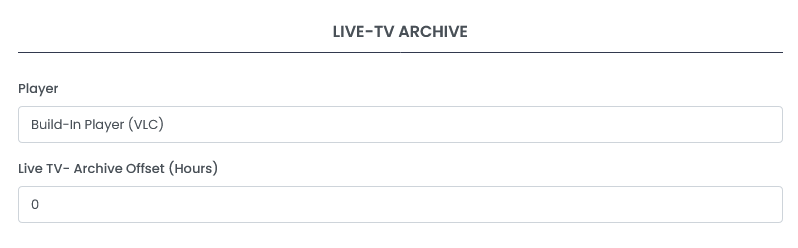
In the LIVE-TV ARCHIVE area you can change the following:
- Player
The app has 2 Built-In stream players. ExoPlayer by Google and VLC Player. Both have specific characteristics and depending on the stream, one or the other may be better. You have to find that out for yourself. You can also define external players. However, we advise against it. - Live TV- Archive Offset (Hours)
If the programs in the archive do not start as desired, you can set the time offset here.
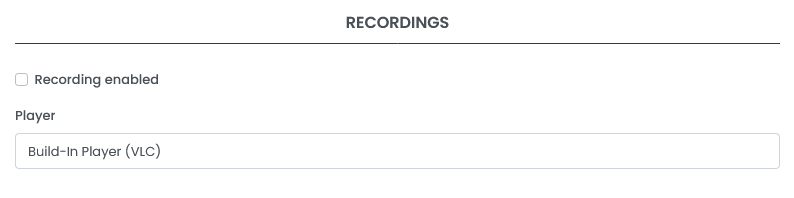
In the RECORDINGS area you can change the following:
- Recording enabled
Mit dieser Einstellung sollten Sie vorsichtig sein. Die Aufnahmen nehmen viel Platz auf dem Laufwerk des Geräts ein. Wenn das Gerät (z. B. der Amazon Fire Stick) über sehr wenig Speicherplatz verfügt, ist es wichtig, externen Speicherplatz hinzuzufügen. Diese Option ist standardmäßig deaktiviert - Player
The app has 2 Built-In stream players. ExoPlayer by Google and VLC Player. Both have specific characteristics and depending on the stream, one or the other may be better. You have to find that out for yourself. You can also define external players. However, we advise against it.
Enigma2
Installation instructions and a description of the functions can be found here
You can enable/disable Enigma2 devices here (disabled devices will not receive a playlist or EPG data). Select one or more devices in the overview and click on “Enable/Disable” in the “Action” dropdown
Special actions for Enigma2 devices are shown to you in the “Action” dropdown.
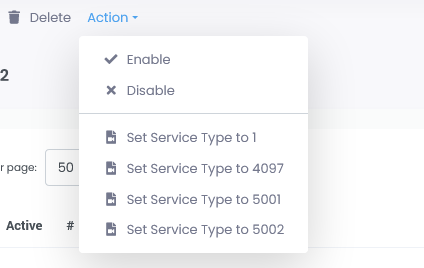
Enigma2 devices play the streams with their own system players. Depending on the Service Type the channel references have, another player takes over the playback. If you have problems playing the streams, you can try another Service Type here.
- Set Service Type to 1
- Set Service Type to 4097
- Set Service Type to 5001
- Set Service Type to 5002
Select one or more Enigma2 devices and click on the desired stream type. You must now reload the list on the device. The operation of the plugin is described here
Stalker (MAG)
Installation instructions and a description of the PORTAL functions can be found here
You can enable/disable Stalker devices here (disabled devices will not receive a playlist or EPG data). Select one or more devices in the overview and click on “Enable/Disable” in the “Action” dropdown
Special actions for Stalker devices are shown to you in the “Action” dropdown.
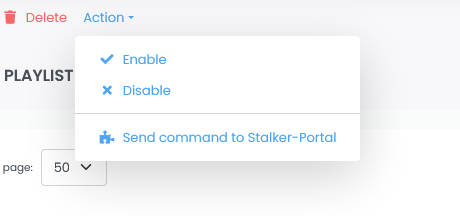
With the action “Send command to Stalker-Portal” you can send the following commands to the device:
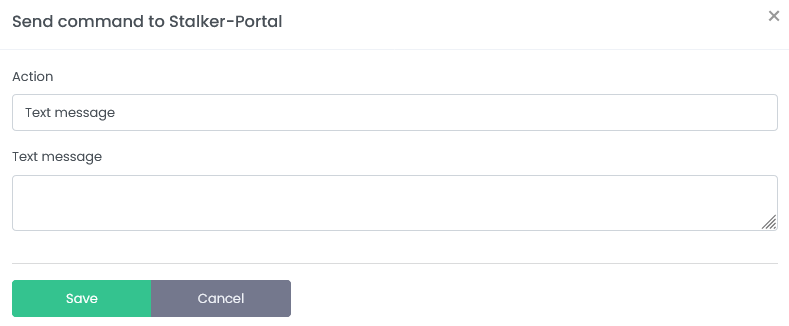
- Text message
Sends a message to the device. This is displayed to the user as a Pop-Up - Reload playlist
Forces the assigned playlist to be reloaded - Reload Stalker-Portal
Forces the entire portal to reload - Reboot device
XC API
You can enable/disable XC-API devices here (disabled devices will not receive a playlist or EPG data). Select one or more devices in the overview and click on “Enable/Disable” in the “Action” dropdown