
Xeev Webplayer is a web application with which you can play your playlist in the browser. The HTML5 player available in the browser is used as the player. Unfortunately, this cannot play all stream formats. Commonly used formats for live streams are MPEG-TS (ts) and HLS (m3u8). Movies and series often use MP4, AVI and MKV format. The HTML5 player can play HLS as a live stream and MP4 for movies and series.
Another problem when playing streams could be the CORS setting of the IPTV provider. CORS is a security mechanism that restricts access to resources. More information can be found here
https://en.wikipedia.org/wiki/Cross-origin_resource_sharing
Create Xtream Codes device
To use the player you need the Xtream Codes device credentials. Here you will find instructions on how to add such a device to your playlist
VLC Player as an alternative
Because the HTML5 player integrated in the browser cannot play all streams, we have discovered a way of playing the streams in the VLC player. To do this, you must first install the VLC Player or unpack it in a folder as a ZIP file. Here you will find all installation files for the current VLC version
VLC Player has an integrated web interface with which you can control the player. We use this interface to send the stream URL to the VLC player and play it. Further information about the web interface can be found here
https://wiki.videolan.org/Control_VLC_via_a_browser/
https://wiki.videolan.org/Documentation:Modules/http_intf/#VLC_2.0.0_and_later
The prerequisite for being able to control the VLC player is that the VLC player is open and the web interface is activated and configured. Below you will find instructions on how to do this
Set up the VLC web interface
– Install VLC Player and open the application.
– Open the “Tools” menu and then click on “Preferences”
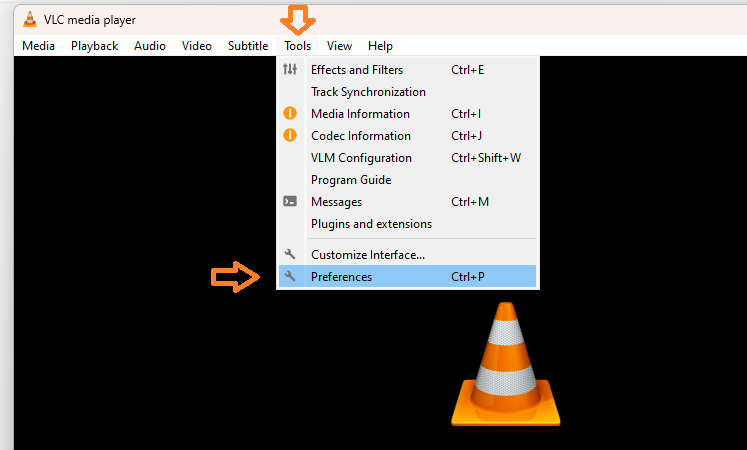
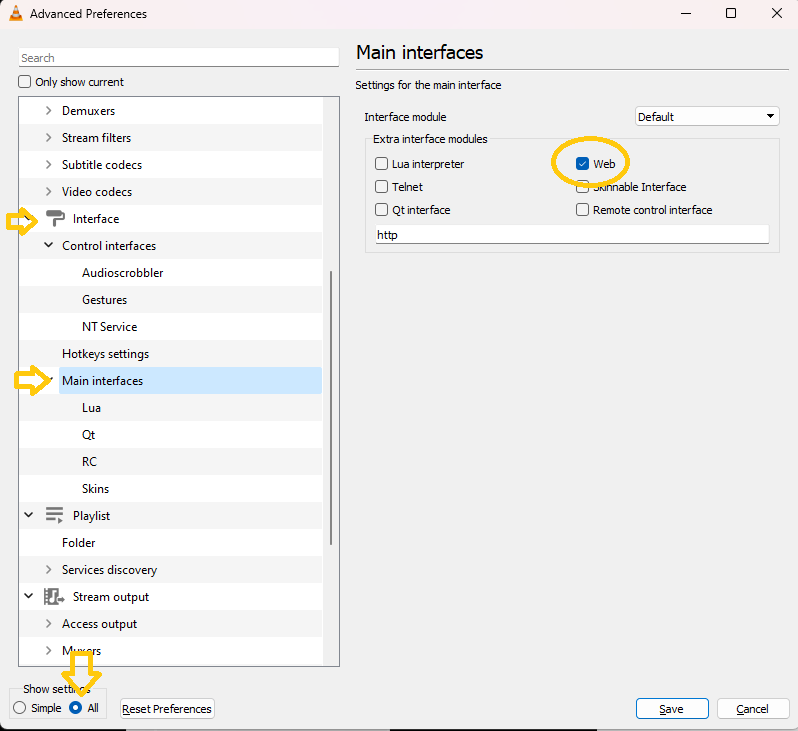
– Switch to full preferences view! (In the bottom left corner)
– Open the menu “Interface” and then “Main interfaces”
– Activate the “Web” module here
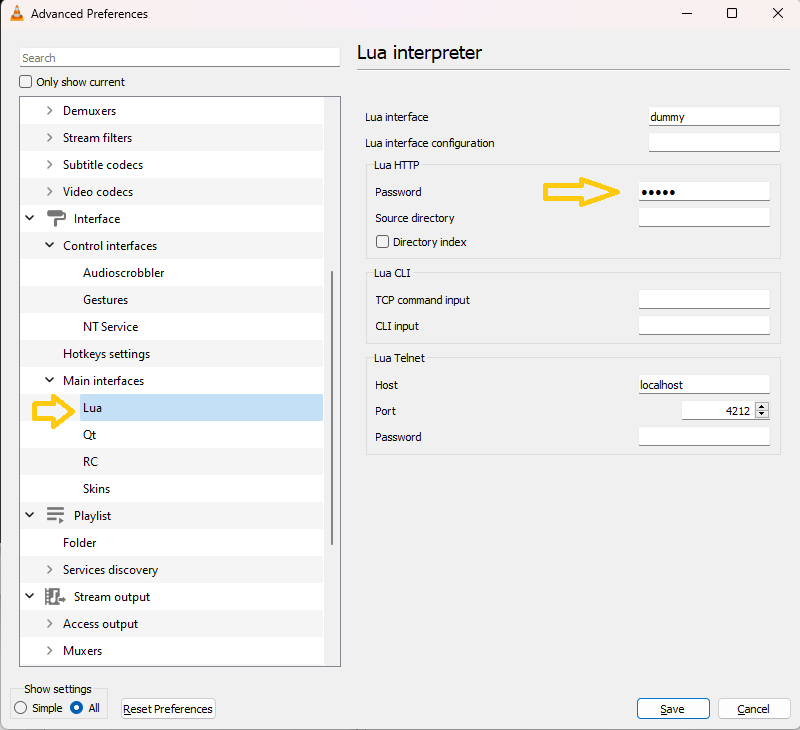
– Now click on the “Lua” menu and set a password for the web interface
Important Information:
When opening the web interface for the first time, you will be asked for the username and password. In this dialog, leave the username blank and enter the password that you set in VLC in the Password field